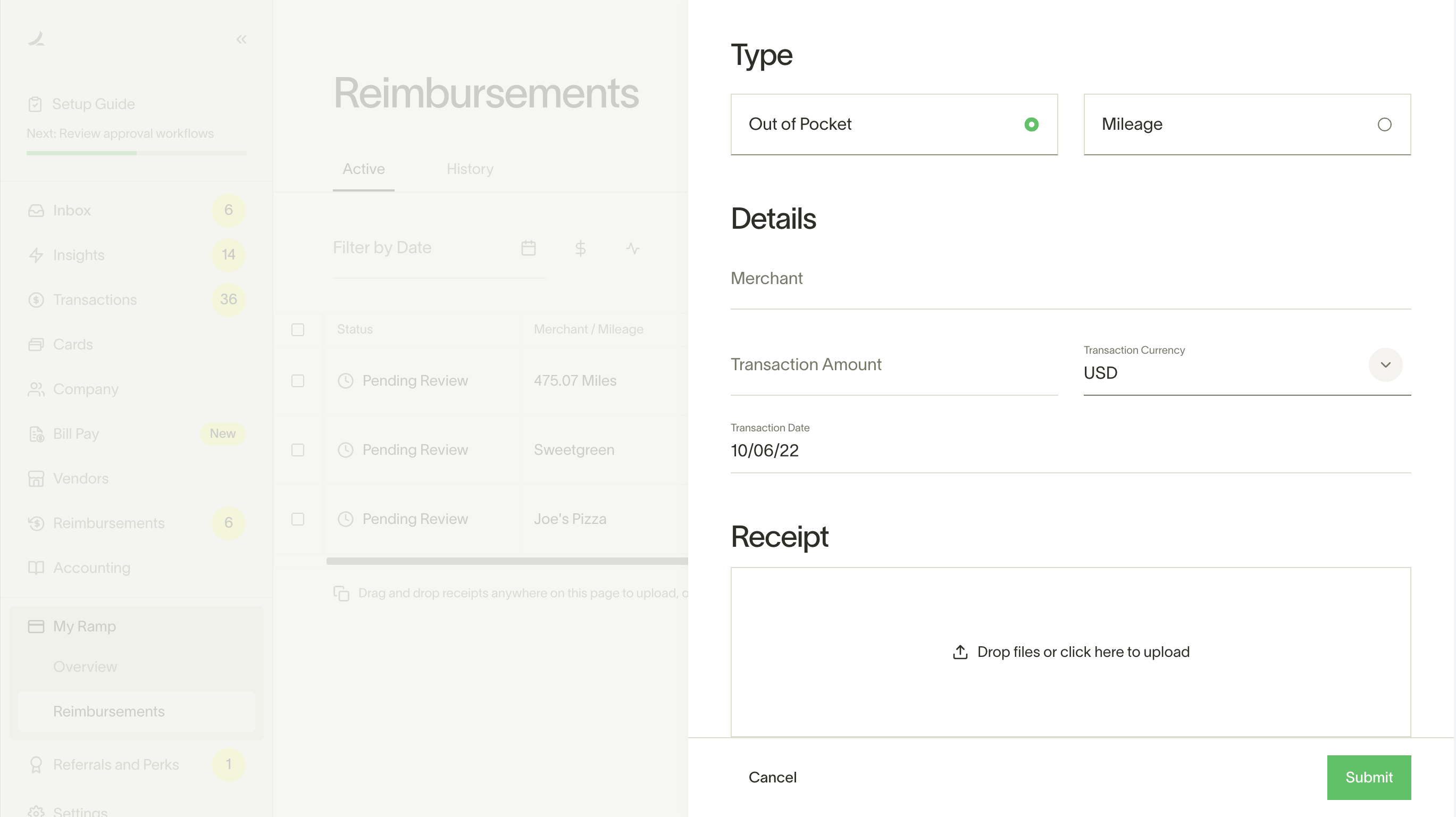
Once employees submit their reimbursements, they will appear in the Pending or Needs Review tab under Expenses > Reimbursements.
While a reimbursement is pending, the submitter's direct manager, assigned assistant, and any bookkeeper and admins may edit any reimbursement field. To do so, click on the reimbursement and click the "Edit" button in the footer at the bottom of the drawer.
When reimbursement fields are edited after the first level of approvals have been made, the approval chain may reset at the second layer of approvals. Simply click on the edit icon.
Below is the logic by which the chain resets:
After a reimbursement has been approved and before the payment begins processing, admins and owners can cancel the reimbursement from the reimbursement drawer in case of mistakes in approval, payment method, or bank issues. This will both cancel and reject the reimbursement. Note: Assistants may not cancel reimbursements.
Admins and managers may approve reimbursements in bulk by selecting the check boxes next to each reimbursement. After clicking "Approve," you'll be prompted to confirm your selection.
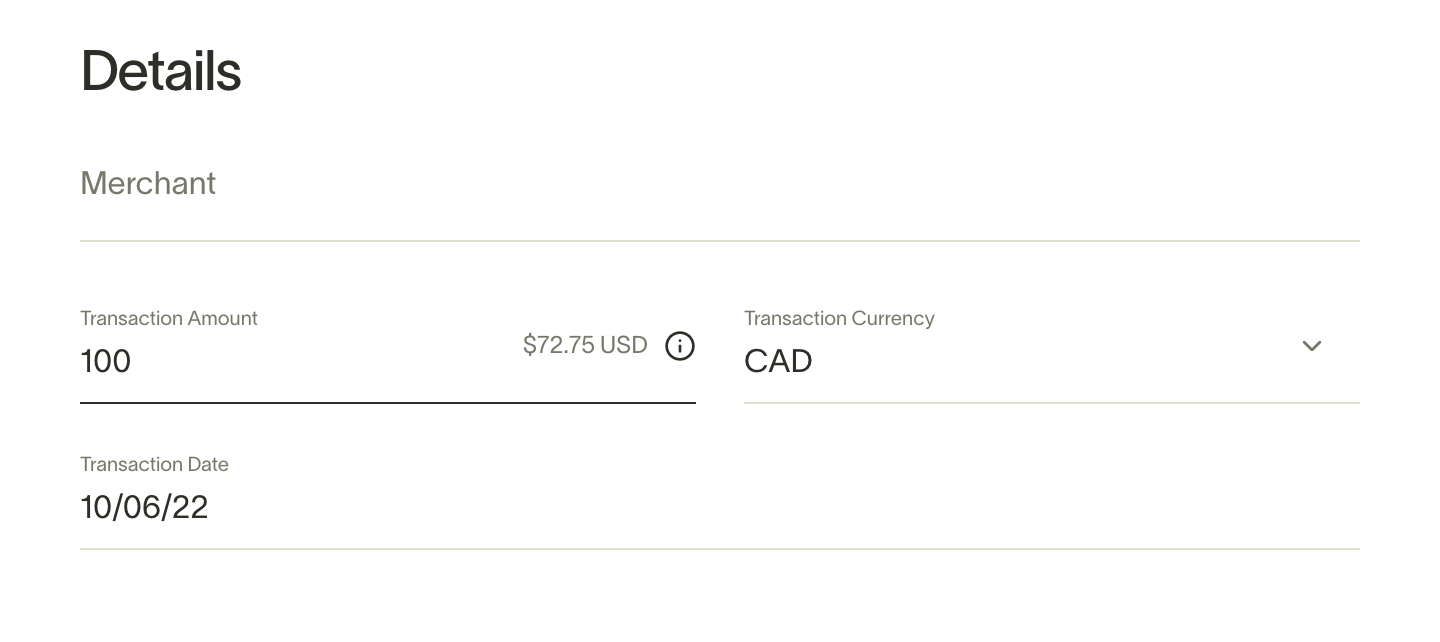
If an employee spends in a different currency than USD, they can let you know when they submit their reimbursement.
The employee will see the estimated USD they will receive, and you'll see a globe icon indicating the amount in the transaction's original currency.
Admins and managers will see USD-equivalent amounts for reimbursements paid out in foreign currencies. Hovering over the globe icon will show you the amount in the transaction's original currency.
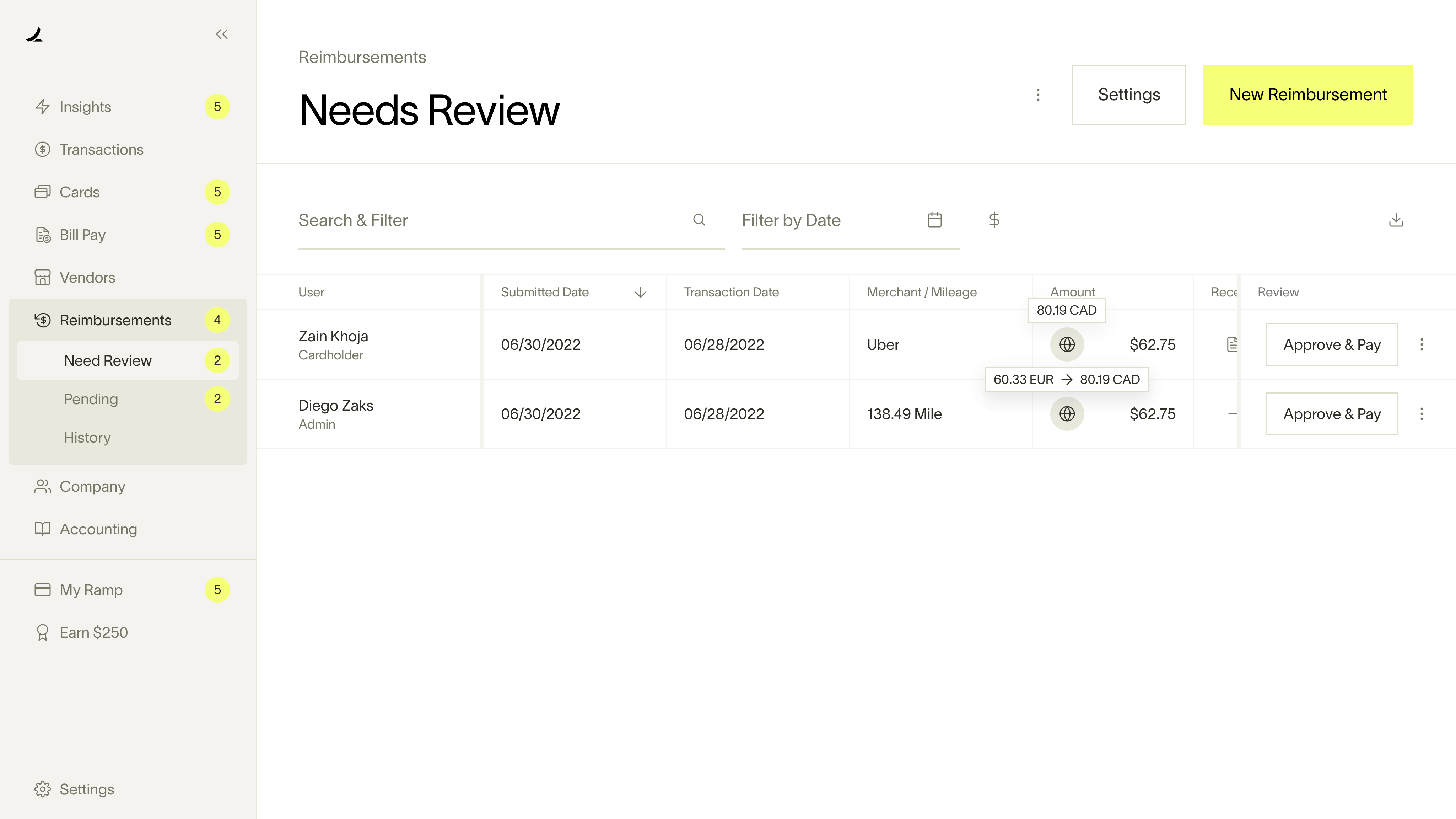
If the employee both had a foreign transaction and needs to be paid out in a foreign currency (ex. your Canadian employee spends GBP on a work trip to London), you'll see both the transaction's original currency and the currency they will be paid out on hover.
Note that international reimbursements are not enabled in Nevada or for financial services businesses due to local regulations and partner restrictions.
Why can't I reimburse an employee directly via Ramp?
What's the difference between the Pending and Needs Review tab?
How do I approve any reimbursements as an Admin?
Admins can approve pending reimbursements from any employee (even if not the direct manager) by clicking on them, scrolling down to the bottom, and clicking on the three dots. From there, you'll be given the option to bypass the manager's approval.
Why did my employee's reimbursment payment fail?
Typically, it's due to incorrect bank details. To resolve this, the employee will have to update the ACH details and retry the payment.
How to retry a reimbursement repayment if it fails?
Important note: Only the employee who requested the reimbursement is able to retry a failed reimbursement repayment. If you are a Ramp administrator, you should direct the employee requesting the reimbursement to retry the payment with the following steps: